
How NonVoip works is a simple loop: create an account, add balance, choose a number type, place an order, enter the number where the OTP is requested, then read the inbound SMS in your dashboard. This guide is an onboarding walkthrough—not a deep technical reference—so you can complete your first verification with confidence.
If you are new to Non-VoIP numbers, start with What is a Non-VoIP number?, then return here for the product flow.
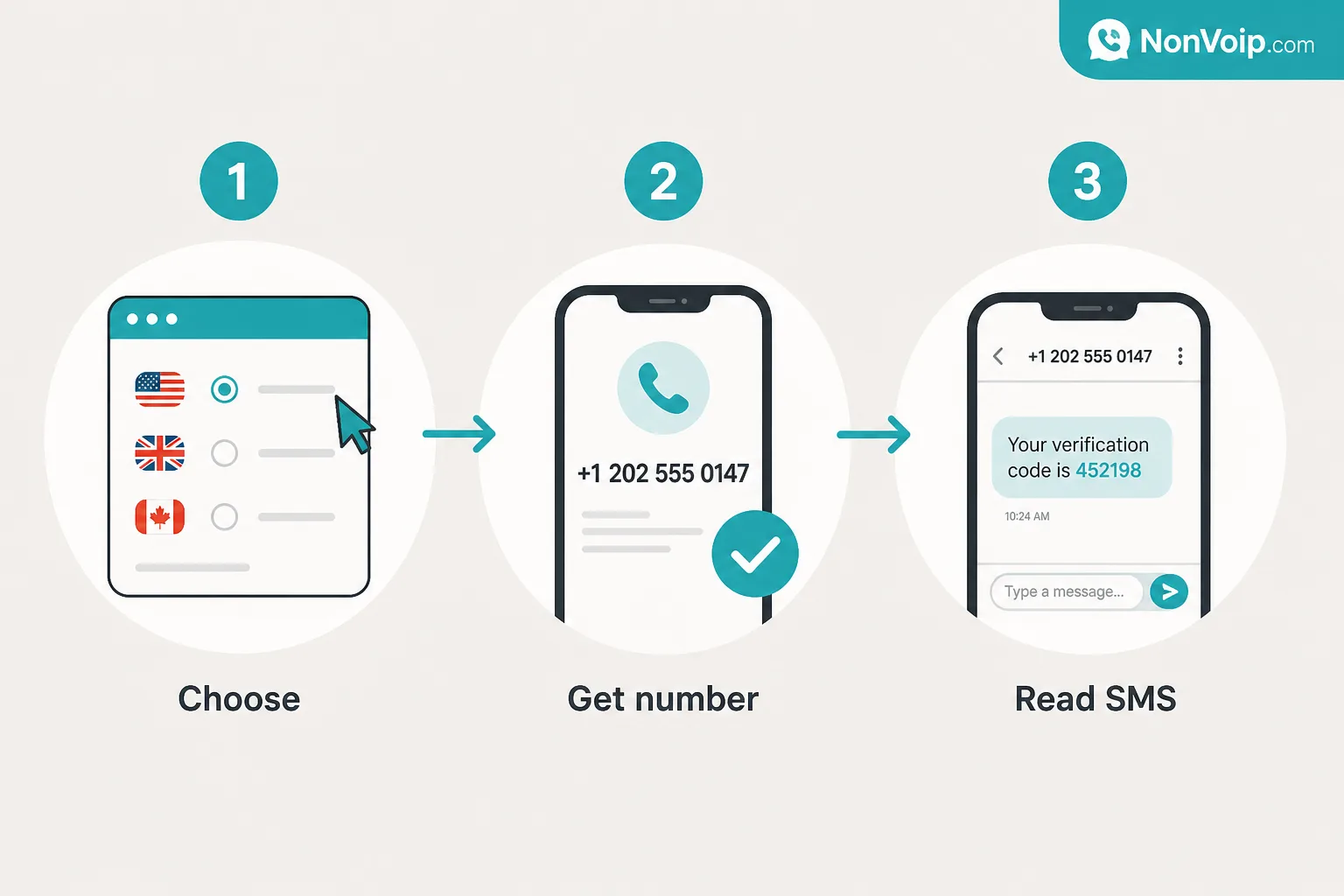
What is the NonVoip flow from start to finish?
Here is the end-to-end path most users follow:
- Register — Create your account and verify your email.
- Add balance — Fund your wallet before placing an order.
- Choose type — Choose Short Term, Long Term, or Dedicated.
- Get number — Select an available offer and place the order.
- Request SMS — Enter the number on the destination service.
- Receive code — Read the SMS and OTP in NonVoip.
The sections below expand each step with practical tips and links to pricing, catalogs, and related guides.
How do you register and prepare your wallet?
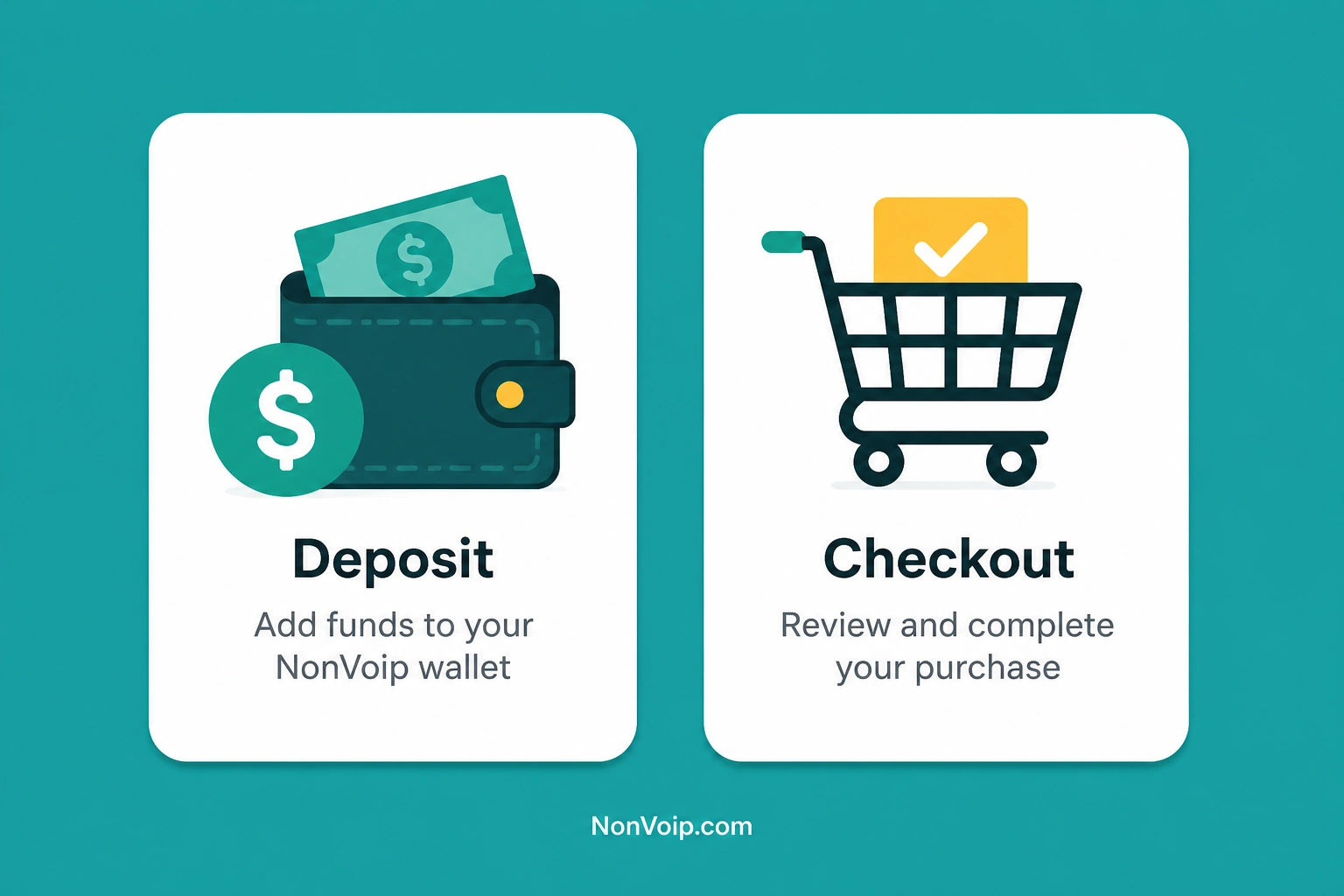
Use Get Started / register from the site header, confirm your email, then sign in to the app dashboard. Orders are charged from your wallet, so deposit funds before checkout.
Open Wallet in the app sidebar to add balance. Step-by-step: How to deposit on NonVoip. Live offer prices appear in the SMS verification catalog. See Pricing for an overview of available options. Keep enough balance for the offer you select so checkout is not interrupted mid-flow.
What number types can you use?
NonVoip offers three number types:
- Short Term — Short access for SMS verification
- Long Term — 30-day access for ongoing inbound SMS
- Dedicated — Private number for ongoing use across services
See Understanding NonVoip number types for definitions, then depth pages for Short Term, Long Term, and Dedicated. Dedicated country pages live under Dedicated numbers.
How do you get a number and request SMS?
- Open the dashboard catalog for the number type you chose.
- Select a service or region and compare offers (price, availability).
- Place the order—your wallet is charged according to the quoted offer.
- Copy the assigned phone number into the verification form on the destination site.
- Trigger the SMS / OTP send from that site.
Timing matters: complete the destination form while your NonVoip session or rental is still active. For Short Term, work within the session window. For Long Term and Dedicated, use the number while the rental remains valid.
How do you receive the verification code?
Inbound SMS for your order appears in NonVoip—typically on the order detail view with OTP highlighted when we can detect it. You do not need a separate phone to read those messages for dashboard users.
If no SMS arrives, avoid repeated resend requests until you check the order status. Use the checklist in SMS verification code not received: what to check. If the destination site rejects the number itself, see Why is my phone number not accepted for verification?.
Always trust the order status fields in your dashboard over assumptions from other sites.
What should you do after your first successful OTP?
- If you need longer access next time, read Understanding NonVoip number types.
- Read What is SMS verification and how does it work? if you want the conceptual background behind OTPs.
Quick Checklist Before You Order
- Account created and signed in
- Wallet funded
- Number type chosen
- Destination site ready to send SMS
- You can stay available to paste the OTP quickly
Next step: Open SMS verification to place your first order, or skim What is a Non-VoIP number? if you still need the Non-VoIP basics.