
To deposit on NonVoip, sign in, open Wallet, choose a currency and network, create a deposit address, then send crypto to that address on the same network. Your Available Balance updates automatically once the deposit is confirmed. Deposits are crypto only—use the currency and network options shown in Wallet. If you do not already have crypto, you can buy USDT on Binance with a card or P2P, then send it here.
Orders are paid from this wallet. After balance is available, see How NonVoip works and How to receive SMS online.
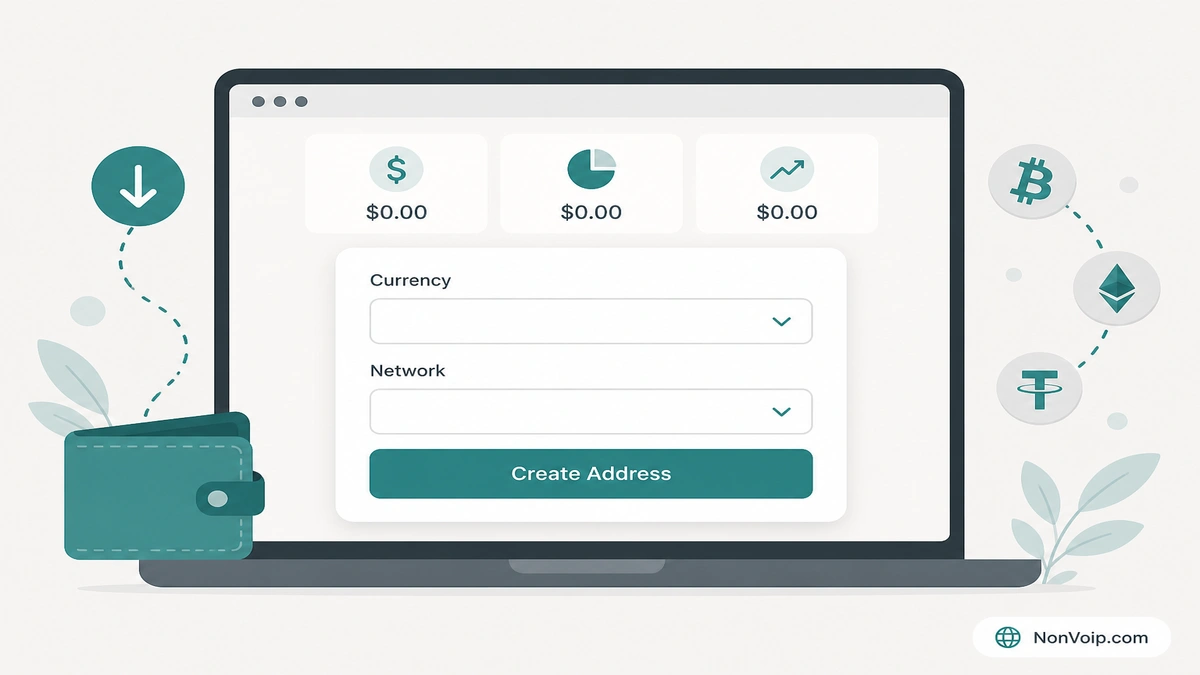
How do you deposit step by step?
- Sign in to your NonVoip account.
- Open Wallet — use + Deposit Now in the sidebar, or go to Wallet.
- Choose Currency, then Choose Network from the options shown in Wallet.
- Click Create Deposit Address. Wallet shows the address, the network, and a QR code.
- Send crypto to that address on the same network. Copy the address or scan the QR. Verify both before you send.
- Wait until the deposit is confirmed. Available Balance updates automatically. You can also click Refresh balance.
- Use Available Balance to pay for Short Term, Long Term, or Dedicated numbers.
If you already have an active address for that currency and network, use Change Address on that card instead of creating a second one.
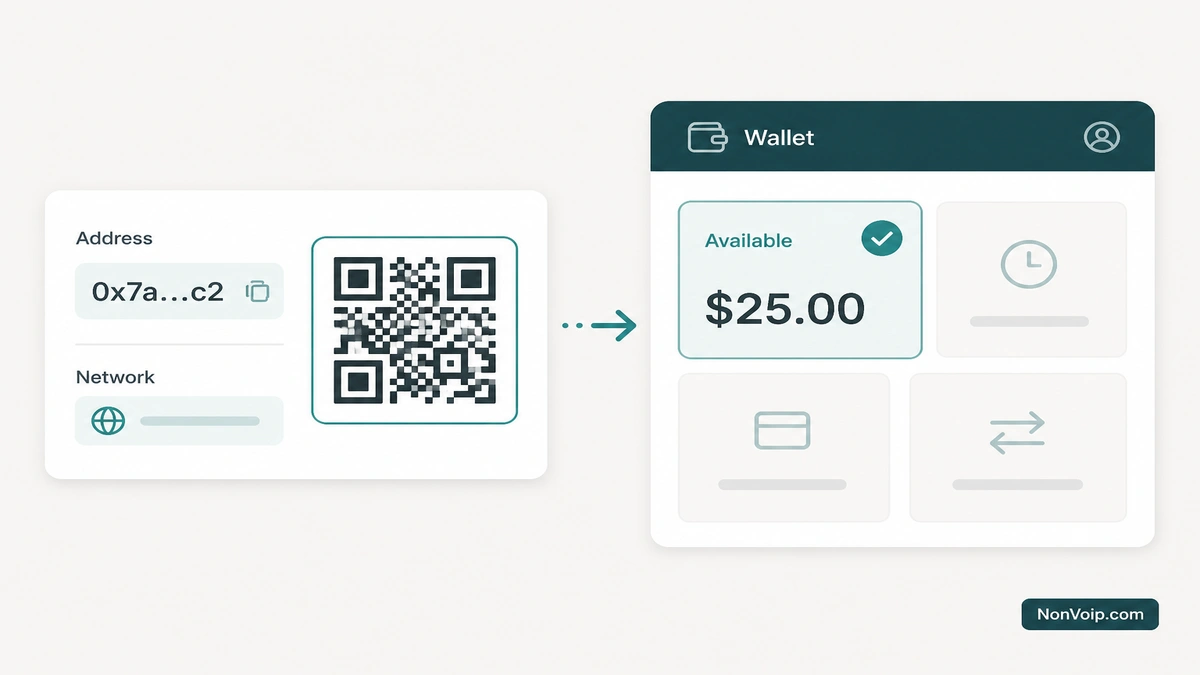
What do you see in Wallet?
The Wallet page shows Total Balance, Reserved, and Available Balance. Available Balance is what you spend on numbers. Wallet shows a 0% deposit fee. Live offer prices are on Pricing and in the SMS verification catalog.
Can you reuse or change a deposit address?
You can deposit to the same active address more than once. Each confirmed payment adds to Available Balance. You do not need a new address for every deposit.
If you want a different address, click Change Address on that card. Use the new address for future deposits. Do not send funds to the old address after you change it.
Why must the currency and network match?
The deposit address is created for one currency on one network. A wrong address or a different network means funds may not be credited. Verify the address and network on the card before every payment.
Use the address currently shown in Wallet—not an old screenshot or an address from another app.
When does the balance appear?
Balance appears after the deposit is confirmed. You do not paste a transaction hash. Wallet updates automatically when a deposit arrives. If the totals look stale, click Refresh balance.
Confirmation timing depends on the network you used. Watch Available Balance in Wallet rather than assuming a fixed wait.
Frequently Asked Questions
Do I need an account first?
Yes. Sign in before you open Wallet and create a deposit address.
What if I send on the wrong network?
Funds may not be credited. Verify currency and network on the address card before every payment.
Where do I see my balance?
On the Wallet page: Total Balance, Reserved, and Available Balance. Available Balance is what you spend on numbers.
Can I deposit more than once to the same address?
Yes. Keep using the active address shown in Wallet. Balance updates when each deposit is confirmed.
Can I change the deposit address?
Yes. Use Change Address on the card. After it changes, send only to the new address.
Next step: Sign in and open Wallet, or continue with How NonVoip works after your balance is available.